Keep up with your Live — without losing the important stuff.
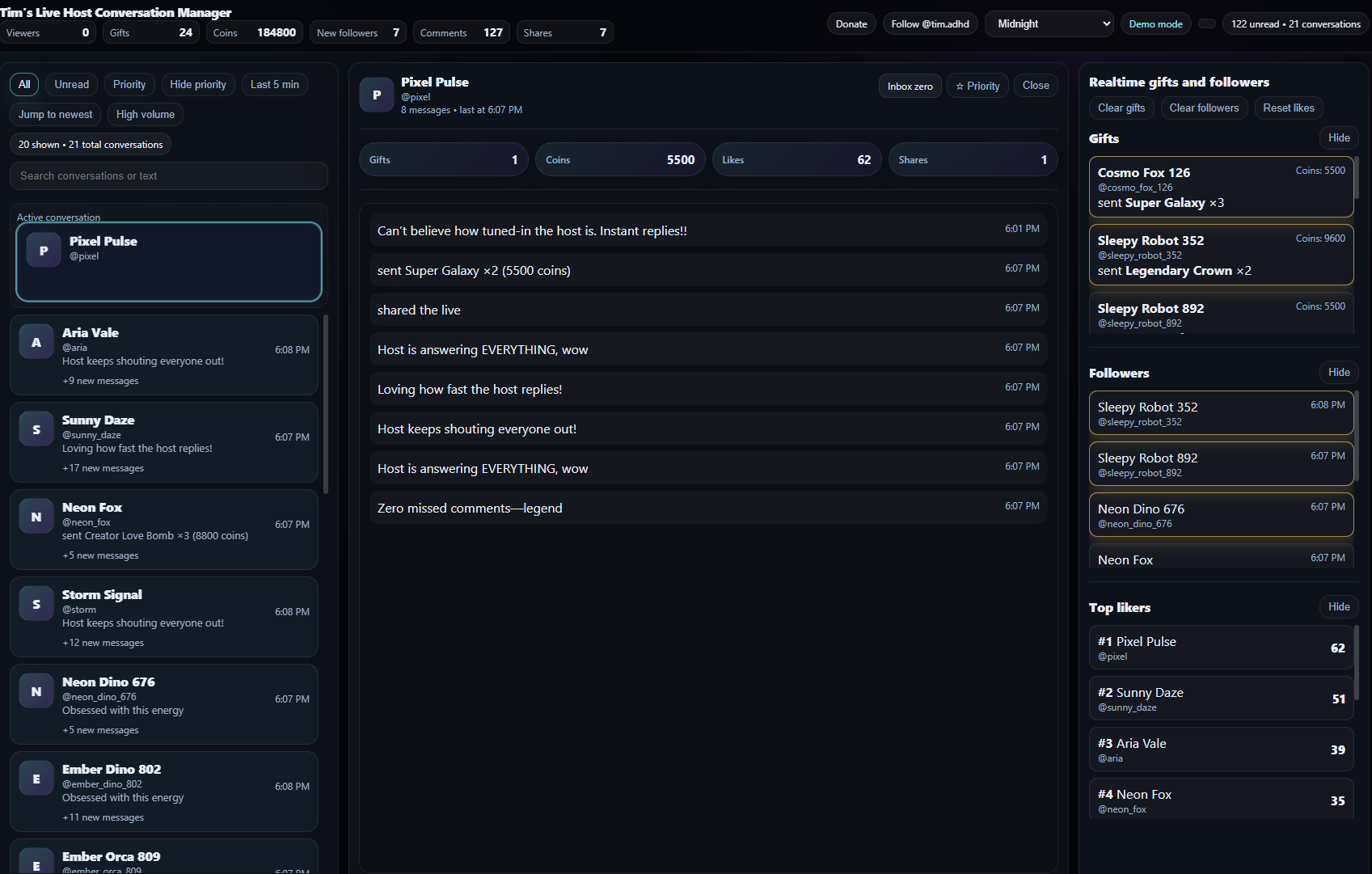
When your Live gets busy, messages fly by, context gets lost, and it’s easy to miss the people you actually want to connect with. This dashboard helps you manage many conversations at once — calmly — while keeping quality and relationships front and center.
Why this exists
1) No more messages getting lost
Busy lives are chaotic. This organizes messages into conversation threads so you can respond with context instead of guessing.
2) Better relationships through context
When you can see the thread, you remember what was said, what you replied, and what matters to that viewer — more meaningful connection.
3) Reduce overwhelm (and host burnout)
Less frantic scrolling, fewer missed moments, and more control when your Live ramps up — reducing overwhelm that can lead to burnout.
What it helps you do
Track & remember key “thank you” moments
Built-in panels help you keep track of new followers and gifts so you don’t lose track of who you’ve thanked. Clear/mark actions help you stay organized during high activity.
Handle many conversations with quality
Threaded conversations, unread counts, priority marking, and search make it easier to manage lots of people at once — without “drive-by” replies.
Stay in control when things get loud
High-volume mode, filters (Unread / Priority / Recent), and “jump to newest” help you work fast without losing structure.
Before you use the dashboard
This dashboard does not connect to TikTok directly. It listens to event data that your computer is already receiving through TikFinity.
Important privacy/safety note: This webpage only parses and reorganizes information that TikFinity already gathers on your computer and transmits over WebSocket. Nothing is ever transmitted out by this page, and the dashboard cannot make any changes to your TikTok account or access it directly. It’s a read-only view of the WS data stream.
Simple setup (step-by-step)
-
Install TikFinity (Free)
Download and install TikFinity: tikfinity.ymnkp.com
Then sign in to your TikTok account inside TikFinity. -
Enable the WebSocket (WS) output in TikFinity
Turn on TikFinity’s WebSocket output so your computer can broadcast live events locally. (Many setups use something likews://localhost:21213/as the default.) -
Install Python (one time)
Download Python from python.org and install it. On Windows, this enables thepycommand you’ll use below. -
Start the dashboard web server
In the folder where your dashboard files live, open a terminal and run:
py -m http.server 8000 -
Open the dashboard
Launch the dashboard page (opens in a new tab), then open Settings and enter your TikFinity WS URL and connect. -
Stop the server when you’re done
In the terminal window, pressCtrl + C.
Support & links
Donate
If this saves your sanity during Lives and you want to support development: Buy me a coffee.
Follow
Follow for updates and walkthroughs: @tim.adhd on TikTok.
Open Dashboard
Ready to run it? Launch the dashboard.